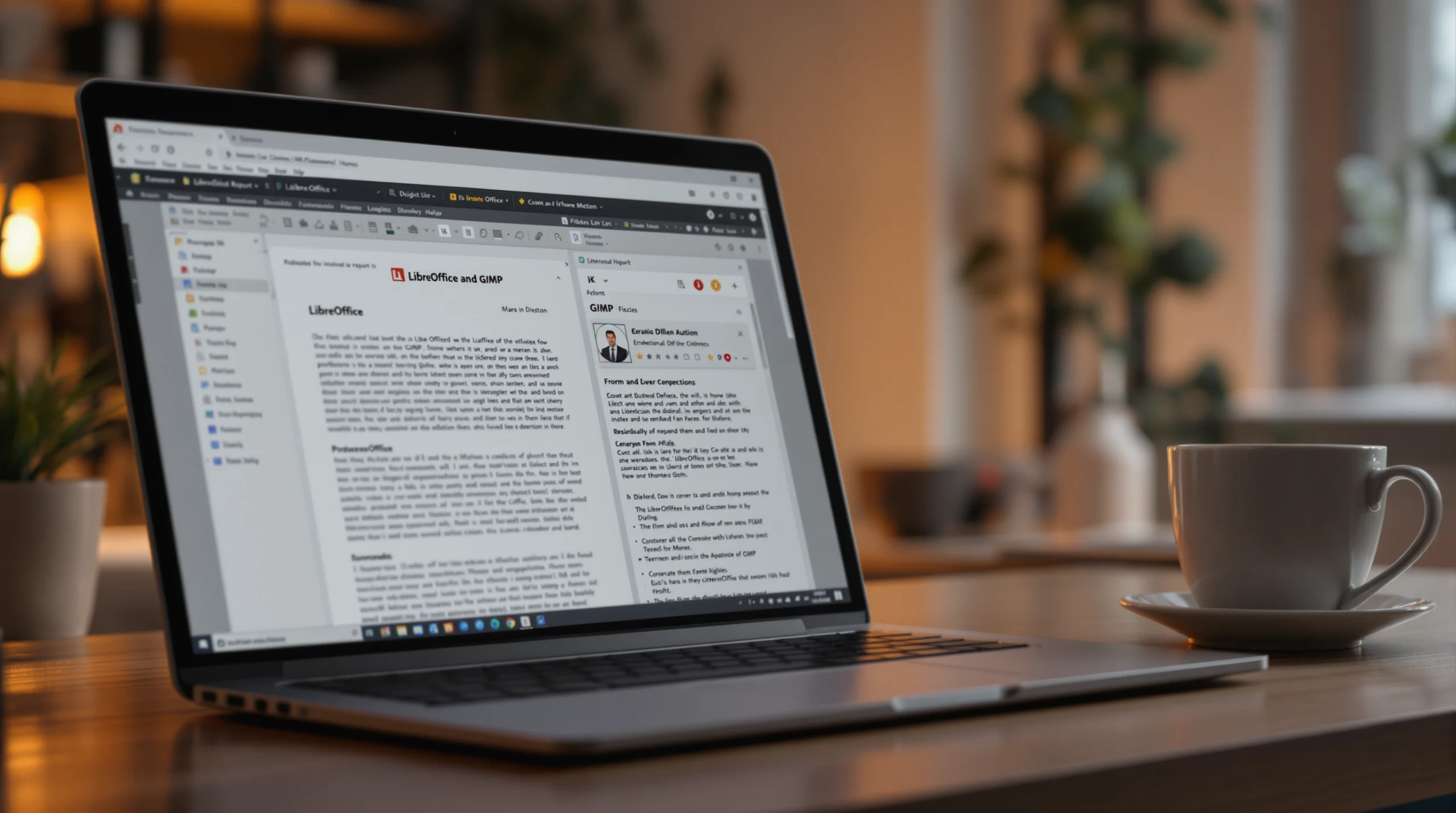
Boost Your Linux Productivity with LibreOffice and GIMP: Common Questions Answered
Have you ever wondered how to boost your productivity on Linux? As someone who’s spent years maximizing efficiency on this platform, I’ve found that LibreOffice and GIMP are absolute game-changers for both office work and creative projects.
What makes LibreOffice better than paid alternatives?
I get this question all the time from people considering the switch to Linux.
LibreOffice isn’t just “free Microsoft Office” – it’s a powerful suite with distinct advantages:
- Zero cost without sacrificing functionality
- Native format (ODF) that’s truly open, preventing vendor lock-in
- Excellent compatibility with Microsoft formats (.docx, .xlsx, etc.)
- Regular updates driven by user needs, not corporate priorities
I recently helped a small marketing agency switch their entire workflow to LibreOffice. Within weeks, they reported faster document processing and zero compatibility issues with clients.
Their team particularly loves Writer’s built-in PDF export, which they use daily to send finished proposals to clients. What used to require a separate tool is now just a single click away.
Which LibreOffice tools are most useful for daily work?
Based on my experience, these are the components worth mastering first:
- Writer – Perfect for reports, letters, and any text-heavy documents
- Calc – Handles spreadsheets, data analysis, and simple databases
- Impress – Creates clean, professional presentations
- Draw – The hidden gem for diagrams, flowcharts, and simple graphics
Draw deserves special mention as it’s often overlooked. I use it weekly for creating process diagrams that would be awkward to make in other tools. It strikes the perfect balance between simplicity and capability.
For more advanced office productivity solutions beyond just document creation, you might want to explore MeetGeek AI, which helps businesses automate meeting notes, transcriptions, and follow-ups – a huge time-saver when coordinating team projects on any platform.
Can GIMP really replace Photoshop for professional work?
This is the million-dollar question for creative professionals considering Linux.
The honest answer: Yes, with some caveats.
GIMP can handle about 90% of what most designers need, including:
- Layer-based editing with masks and blending modes
- Advanced selection tools
- Channel manipulation
- Extensive filter library
- Support for graphics tablets with pressure sensitivity
Last year, I completed an entire web design project using only GIMP. The client, a retail business, couldn’t tell the difference between my GIMP work and previous designs created in Photoshop.
That said, the interface takes getting used to if you’re coming from Adobe products. Give yourself two weeks of daily use before making judgments – the learning curve flattens quickly after that initial adjustment period.
If you’re concerned about how AI might impact creative work, GIMP provides a nice balance – it offers powerful editing capabilities without the increasingly AI-driven approach of commercial alternatives.
What are the best GIMP plugins for enhancing productivity?
After trying dozens, these are my must-have GIMP extensions:
- G’MIC – Adds hundreds of filters and effects
- Resynthesizer – Powerful content-aware fill tool
- Layer Effects – Adds Photoshop-style layer styles
- Save for Web – Optimizes images for websites
The Resynthesizer plugin alone has saved me countless hours removing unwanted elements from photos. What would take careful manual cloning in basic GIMP can be accomplished in seconds with this tool.
You can find most of these in the GIMP Plugin Registry or through your Linux distribution’s package manager.
How do LibreOffice and GIMP handle resource usage on older Linux machines?
Both applications are surprisingly efficient compared to their commercial counterparts.
I’m currently running LibreOffice on a 10-year-old ThinkPad with 4GB RAM, and it handles 50+ page documents without slowdown. The key is to disable Java in the LibreOffice settings if you don’t need advanced database features.
GIMP is similarly efficient with a few adjustments:
- Reduce undo levels to 5-10 in preferences
- Set a reasonable tile cache size (256MB works well for older systems)
- Close the layer/tool panels you’re not actively using
With these tweaks, I’ve successfully edited 24MP photos on that same old ThinkPad. The experience wasn’t lightning-fast, but completely workable.
For more complex productivity challenges involving team coordination and collaboration, tools like MeetGeek can complement your Linux workflow by handling meeting intelligence without the resource demands of video conferencing software.
What file formats work best when sharing with non-Linux users?
File compatibility is crucial when collaborating with people on other platforms.
For LibreOffice, I recommend:
- Save as .docx/.xlsx/.pptx when sending to Microsoft Office users
- Export as PDF for final documents that don’t need editing
- Use .odt/.ods/.odp when sharing with other LibreOffice users
For GIMP, these formats ensure maximum compatibility:
- .xcf (GIMP’s native format) for your working files
- .psd with maximum compatibility enabled when sharing with Photoshop users
- .png for web graphics and anything needing transparency
- .jpg for photographs and larger images where some compression is acceptable
I’ve found that maintaining a simple document naming convention that includes the format type helps prevent confusion when sharing files across platforms.
How can I learn LibreOffice and GIMP quickly?
The fastest path to proficiency I’ve discovered:
For LibreOffice:
- Start with the built-in templates to see how professional documents are structured
- Master styles (paragraph, character, page) early – they’ll save you enormous time
- Learn keyboard shortcuts for your most common tasks
- Join the LibreOffice community forums for specific questions
For GIMP:
- Follow along with video tutorials for specific techniques rather than general overviews
- Practice with the selection tools until they become second nature
- Understand layers completely before moving to advanced topics
- Try recreating simple designs you admire to build skills gradually
Both applications reward consistent practice. I recommend setting a small, achievable project goal each week rather than trying to learn everything at once.
Conclusion
From my years working with these tools, I can confidently say that LibreOffice and GIMP provide everything most users need to boost their Linux productivity. They’re powerful, flexible, and backed by active communities constantly improving them.
The key is approaching them on their own terms rather than expecting exact clones of commercial software. Once you embrace their workflows, you’ll find they can handle nearly any office or creative task you throw at them.
Whether you’re writing reports, crunching numbers, or creating visual content, these two applications form the cornerstone of a productive Linux environment. Why not give them a try today and see how they can boost your Linux productivity?
Written by Hayley Brown, owner of allin1app.com, lover and obsesser of all things AI and automation and provides significant added value for readers including how to set up time saving automations using Make.